How to Install a Facebook Ad Blocker on Chrome and Firefox (Step-by-Step)
Facebook ads are already challenging enough for us to “swallow a spoonful of bitterness,” but recently, some ads have even become a secret door leading straight into a malware den. The wave of malvertising is accelerating, while Facebook is virtually turning a blind eye to many ads leading users to scam pages or silently downloading malicious files. If we look closer, Facebook’s advertising mechanism operates like a living entity clinging to users’ web browsing habits, which is why you see many bad Facebook ads (porn, gambling, etc.). And amidst this “sophistication without control,” Facebook sets up an extremely loose filtering net for advertisers. Therefore, in this article, BlackHatWorld will guide you on how to select and install the most effective extensions to block dangerous ads on Facebook when using Chrome and Firefox. This is the simplest way to protect your device, data, and peace of mind whenever you browse the web.
Top 5 Facebook ad blocker extensions with proven effectiveness from users
When even advertisers like us cannot completely control the amount of malware and tracking tools we are exposed to online every day, using an ad blocker to protect ourselves is necessary. If you want a clean, lightweight browsing space that is no longer distracted by annoying or potentially harmful ads, the list below is the reliable “armor” to safeguard your experience. Based on actual feedback from the user community, we compiled the 5 most powerful ad-blocking extensions to prevent intrusive ads on Facebook and many other platforms.
Stands AdBlocker
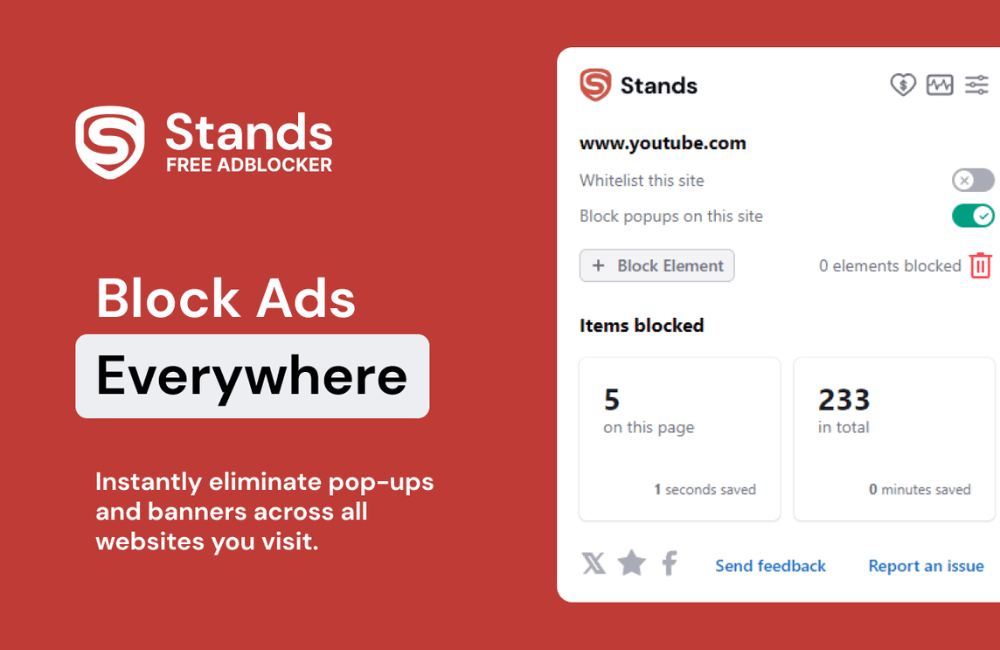
Stands AdBlocker works stably on Android, Mozilla Firefox, Google Chrome, Edge, Opera, Vivaldi, and Brave. This is very suitable if you use multiple browsers simultaneously or want to protect the whole family.
- Ad blocking: Stands helps eliminate all annoying ads, from flashing banners, pop-up windows, to Facebook, YouTube, Twitch ads, and even “acceptable” ad formats. For example, if you are watching a product review video and YouTube interrupts with an ad, Stands will “sweep it away” immediately.
- Online protection: Blocks third-party trackers and cookies, helping you limit online behavior tracking.
- Allows adding a whitelist for pages you trust. For instance, if you want to support a news site in your country but still hate excessive advertising, you can enable viewing clean content while retaining some banners to support the publisher.
Price: Completely free, optional contribution.
Total Adblock
Total Adblock’s strength is its wide compatibility: Chrome, Edge, Firefox, Safari, iOS, and Android. You can synchronize it across both mobile phones and computers.
- Ad blocking: Thoroughly handles auto-playing ads, self-starting videos, and unexpected audio on Facebook, YouTube, and many other platforms. Very useful when you are in a public place and do not want your phone to “shout” because of an ad.
- Online protection: Prevents malicious websites and third-party trackers.
- Allows marking trusted websites, creating a whitelist, and managing ad display preferences according to needs.
Price: Paid plans start from 29 USD for the first year, 119 USD for subsequent years. There is a money-back guarantee.
NordVPN Threat Protection
NordVPN threat protection’s compatibility is diverse, including iOS, Android, Windows 10, and Mac, along with extensions for Chrome, Edge, and Firefox.
- Ad blocking: Blocks banners, pop-ups, and other forms of annoying ads, while also disabling third-party trackers.
- Online protection: Detects and prevents known threats, including malicious websites and dangerous downloads. Additionally, when used with NordVPN’s VPN, you are protected from information leakage risks on public networks.
- Advertisers or users can adjust settings based on individual needs.
Price: The Standard Protection plan is 12.99 USD per month, with a 30-day money-back guarantee.
AdBlock
AdBlock has compatibility and support on the following platforms: Chrome, Firefox, Edge, Safari, and iOS.
- Online protection: Removes pop-ups, banners, video ads, trackers, and even cryptocurrency mining malware. AdBlock also has an “acceptable ads” mode, suitable for those who want to support small websites.
- Allows pausing on specific pages or re-enabling ads if you want to follow content that supports creators.
Price: Completely free; contributions are voluntary.
AdGuard
AdGuard’s compatibility is the broadest on the list: Chrome, Firefox, Edge, Safari, Opera, Yandex, Windows, Mac, Android, and iOS.
- Online protection: Blocks ads, anti-tracking, prevents malware, blocks phishing sites, and includes a parental control suite. For example, if your child frequently visits educational websites, AdGuard protects them from pages containing inappropriate content.
- Many advanced options are available for users who prefer self-setup, especially in the paid version.
Price: Personal and family plans start from 2.49 USD per month.
How to Install a Facebook Ad Blocker on Chrome
Imagine Chrome as a bustling marketplace, where countless extensions jostle to offer their services. Our mission is to select the right tools to help advertisers and users protect themselves from the malicious ads lurking out there. Therefore, in this section, we will provide detailed instructions so that anyone can personally set up a shield to block unwanted Ads on Facebook right in the Chrome browser.
Opening the Chrome Web Store and selecting a reputable Extension
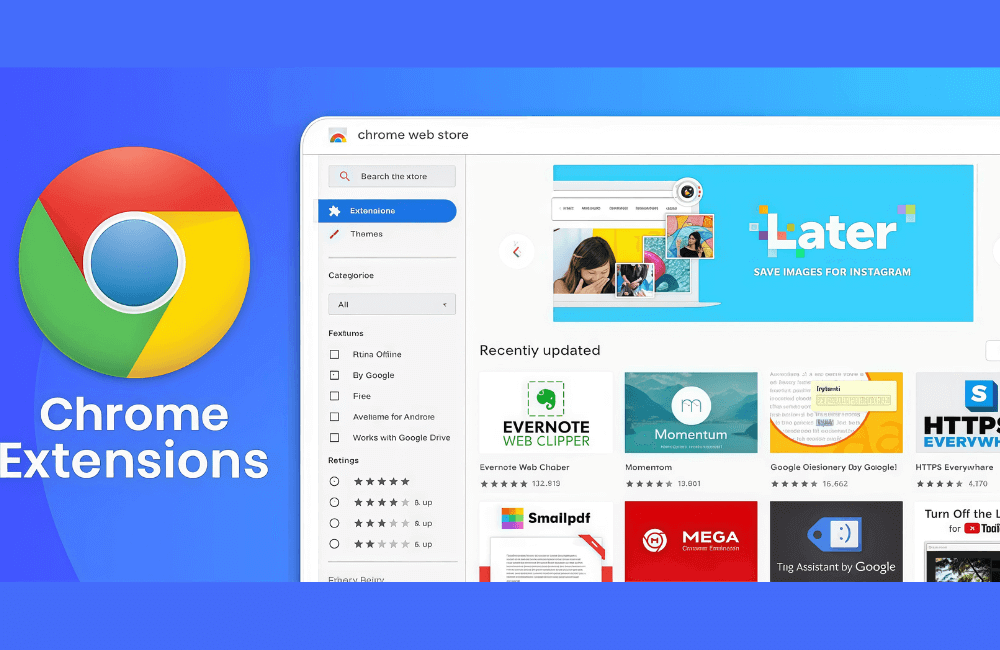
Open the Google Chrome browser on your computer. When the window appears, we encourage you to navigate to the search bar at the top and enter the keyword “Google Chrome Web Store.” Simply press enter, and Chrome will return a list of related results. Among them, the official link to the Chrome Web Store usually ranks first. Click on this link to go directly to the homepage of the Chrome extension store.
Finding the extension you want
Once inside the Chrome web store, you will see a search bar located on the left or top side, depending on the interface. Here we enter the keyword “Block Site,” and press Enter to search.
Immediately, a list of related extensions will appear. Among them, advertisers and users should look for the correct extension named “Block Site,” usually developed by blocksite.co or similar. Click on this extension to open the detailed description page, where you will see instructions, reviews, and other user information.
Adding the extension to Chrome
On the Block Site details page, we will find the “Add to Chrome” button right on the screen’s right side. Simply click this button, and a pop-up window will appear asking for confirmation. When the pop-up shows up, please select “add extension”. This helps Chrome start downloading and activating the extension. After a few seconds, Block Site will be successfully added, and the extension’s icon will appear in the right corner of the Chrome toolbar.
Customizing the extension to block Facebook Ads
Once the Block Site icon is settled on the toolbar, click on that icon to open the extension’s dashboard. Right on the main interface, you will see a box to enter the desired website address to block. Here, you and I can enter “facebook.com,” then click OK or Add to include it in the block list. Immediately after completion, all access to Facebook will be automatically blocked.
Can I install a Facebook ad blocker on Firefox?
Using an extension not only helps you browse the web faster but also limits the risk of being attacked by malicious ads. We will specifically illustrate this with AdBlock Plus, one of the most popular and easy-to-use extensions on Firefox.
Accessing and installing AdBlock Plus on Firefox
Open your Firefox browser and go to the addons.mozilla.org page. Here, you will see all the extensions that you can add to the browser.
- In the search box, enter AdBlock Plus and press Enter. The extension will appear in the first position in the list.
- Click on Add to Firefox to add it to the browser, then press Add to confirm.
Firefox will ask if you want to allow this extension to work when opening a private browsing window. We personally usually deselect this, because when using private mode, we want a completely “clean” browsing experience without extension interference. You can choose according to your needs and press OK, got it.
Immediately after the installation is complete, the AdBlock Plus extension will be activated. You can check by opening any website, for example, our page, and notice that the extension has blocked the displayed ads on the page. The first time you open the extension, AdBlock Plus may show a notification inviting you to donate. If you do not wish to, you can close this tab and continue using it normally.
Managing AdBlock Plus on Firefox
Managing AdBlock Plus is very simple. Click on the extension icon on the toolbar, and you will see options to turn it off, for example, only turning it off for the current website or turning it off for some specific pages. If you want to completely remove the extension, you just need to right-click on the icon and select Remove Extension.
Firefox allows you to manage all extensions in a single interface. Open a new tab and type about:addons, then press enter. Here, you will see all installed extensions and can click the three dots (…) to open options for detailed settings or select Remove to completely delete the extension.
Furthermore, from this page, you can also add new extensions directly without having to return to the official Add-ons page. This makes managing, enabling, disabling, or updating extensions more convenient and faster.
Installing an ad blocker on Chrome and Firefox helps you browse Facebook more safely, reduces distraction from ads, and limits risks from malicious websites. With just a few simple steps, you can effectively and conveniently control your web browsing experience.
Frequently asked questions
Most extensions like AdBlock or uBlock Origin are quite well optimized, only slowing down the page slightly, but negligibly compared to the benefit of blocking ads.
Yes, most ad blockers allow you to add exceptions or turn off blocking for each website you want.
💬 Contact now for free consultation from BHW!
- Website: https://vi.blackhatworld.io/
- Telegram: @bhw_agency
- Whatsapp: +84819001811
- Wechat: bhwagency
- Email: [email protected]
This article is also available in other languages: