Facebook Ad Account Disabled? How to Contact Support and Appeal Fast
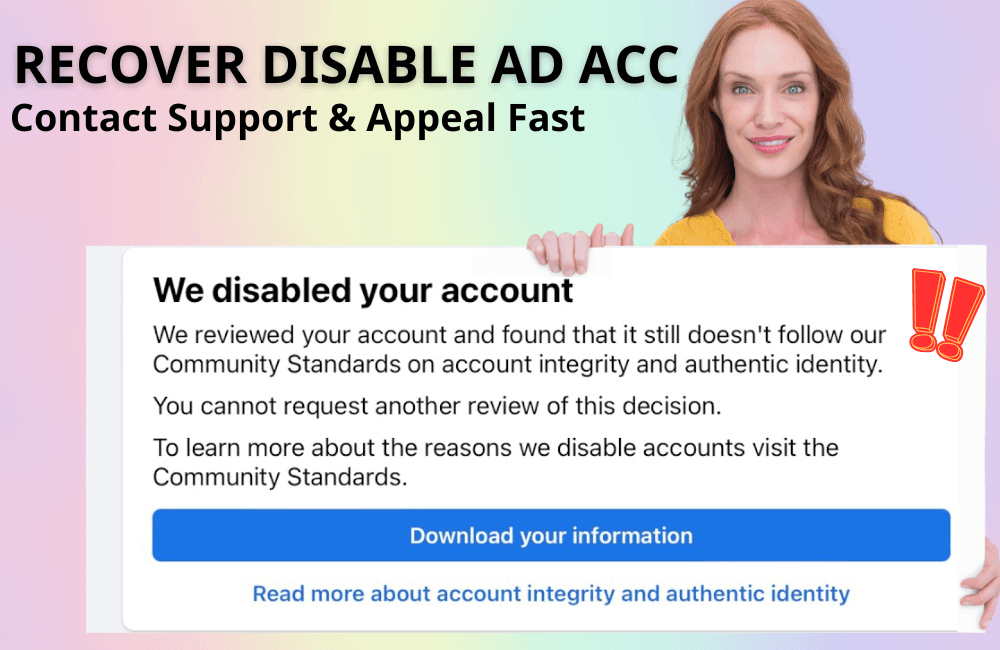
Disabled Facebook ad accounts are one of the most “headache-inducing” situations for advertisers, especially when campaigns are running stably or large budgets have been allocated. Just one account lockout notice can disrupt the entire marketing plan, cause revenue to drop, and take a lot of time to resolve. In this article, BlackHatWorld will guide you on how to fix disabled Facebook ad accounts, while also sharing the steps to contact Meta support and the appeal process, to maximize the chances of account reinstatement quickly and effectively.
Guide to handling disabled ad accounts.
When running Facebook ads for an extended period, almost every advertiser will eventually encounter a situation where their ad account or Business Manager is restricted, held, or disabled. The important thing is not to panic or create a new account immediately, but to know exactly what to do and follow the correct Facebook process to increase the recovery rate on the first attempt.
Identify the correct account status and the Request Review button
First, when you log into Ads manager and see a restricted account notice, or when accessing Business Manager and seeing a “temporary hold” or “disabled” status, please check carefully.

If it is an eligible account for appeal, you will see the Request Review button. This is an important signal because if this button is still available, it means Facebook is still giving you an opportunity to provide an explanation and recover the account.
In some cases, the ad account remains active while the Business Manager is restricted. In such situations, the handling process remains the same, differing only in the scope of impact. We have encountered many panicked clients when seeing a locked BM, but in reality, following the correct steps can reopen it within 1–2 days.
Access Business Support Home and verify identity
When you click on Request Review, the system will take you to the Business Support Home page. Here, you continue to select Request Review once more. Facebook will usually ask you to verify your email and phone number. This is a mandatory step to ensure the person submitting the appeal is the actual owner of the account.
Afterward, Facebook will require you to upload identification documents, typically an identity card or passport. When uploading, ensure the photo is clear, not cropped at the corners, and the information is complete and matches your Facebook profile. After clicking Continue, Facebook will display a notice stating it will respond within 4 days. However, in reality, we have seen many accounts verified in just 30 minutes to a few hours.
Submitting an Account Appeal correctly
Once your identity has been verified, return to the support page. At this point, the Request Review button will be reopened, and you can submit a formal appeal.
Facebook will ask for the reason you are requesting a review. You may see options such as “I’m not sure which policy I violated” or Select another reason. We recommend choosing Select another reason so you can enter a detailed explanation content. Here is an example of the appeal content we frequently use for advertisers:
“Facebook, my Business Manager, has been restricted, and this is seriously affecting my business operations. I was notified that the account was restricted because Facebook detected some unusual activity. I have carefully read the advertising policies and believe that I have not violated any Community standards or advertising policies.”
Afterward, Facebook will usually display a specific reason, such as suspected use of automation tools or behavior that does not comply with account integrity standards. At this stage, continue to explain that you are not using any unauthorized tools, or that the Business Manager is newly created and has not run ads yet, if that is the case. At the same time, demonstrate a cooperative attitude, such as being willing to make adjustments if a violation occurred unintentionally.
Check and synchronize personal information before submitting an appeal
A very common error that causes many appeals to be rejected is mismatched personal information. Before submitting a request for review, we always carefully check this section for our clients.

Please go to Settings & Privacy, then Settings, and proceed to Account Center. Here, select Personal details and check your first name, last name, and date of birth in the Profiles section.
The name on your Facebook profile must match the name on your identification documents. If they do not match, please edit them before submitting the appeal. This is a small detail, but it significantly impacts the review results.
Processing time and common results
After submitting an appeal, Facebook typically responds within 24 to 48 hours. In many cases, we handle accounts that are restored after only one day if the information is complete and the explanation is clear.
If you follow all the steps above correctly, the account recovery rate is very high, especially for accounts that have no history of serious violations or were only locked due to automated suspicion.
Tips to find the correct appeal form
In many cases, you cannot access Ads Manager or Business Suite, especially when the account is completely locked. At this time, you can access the Facebook support team’s Gmail for assistance. Additionally, you can use this search syntax on Google:
site:facebook.com/help + your issue
For example, if the account is hacked, you just need to search “site:facebook.com/help hacked account.” Google will return the correct official Meta support forms for each specific issue. This method helps you avoid filling out the wrong form, saves a lot of time, and increases the probability of a successful appeal.
If you are conducting serious business on Facebook and Instagram, consider understanding these support channels as a mandatory part of your operating strategy. When an incident occurs, the person who knows how to contact correctly will always be the one to recover faster.
How to contact support and file an appeal quickly?
When a Facebook ad account is disabled, the most important thing is not to panic, but to know the correct channels to contact and appeal. Many advertisers lose weeks or even months simply by submitting the wrong forms or contacting the wrong places. Below are the methods that many other advertisers are using most effectively today.
Method 1: Contact support directly via Facebook Ads Manager
If you still have access to Facebook Ads Manager, this is always the fastest and most official way to contact Meta. We often instruct you to log in directly to adsmanager.facebook.com. After entering the ad management interface, look at the left menu, click the question mark icon, then select Contact support.
Here, Facebook will ask you to select the ad account or Page experiencing the issue. Describe the problem clearly, concisely, and to the point. For example, instead of writing “My account is locked,” you should clearly state “Ad account disabled due to policy error, no prior warning.”
A very important note is to fill in all contact information, especially your phone number and email. In many cases, Meta will call you directly or send an email to follow up on the issue. If the automated response system cannot resolve it, you will be transferred to talk to a live support agent. This is the time when you need to present the issue calmly and logically.
Method 2: Using Meta Business Suite for Page-related issues
In case of issues related to a Facebook Page, such as the Page being restricted, loss of admin rights, or unusual flagging, Meta Business Suite will be a more suitable tool. You access business.facebook.com, then select the Help section in the left menu. Continue by clicking the question mark icon and selecting Contact Support.

The process here is quite similar to Ads Manager. You will need to fill out a short form, describe the issue in detail, and attach screenshots to increase credibility. For example, if the Page is restricted from posting, clearly capture the violation notice or the restriction status within the Page.
If the automated system cannot handle it, you will be forwarded to another support agent. For Pages with a good and transparent activity history, the positive response rate is usually higher.
Method 3: Priority support via Meta Verified (paid)
This is the method that we personally evaluate as the most worthwhile for serious businesses, despite the fee. Currently, Meta Verified for businesses costs about 15 USD per month and is only available in certain regions. However, if you are running ads regularly, this is almost a mandatory expense.
After registering for Meta Verified, you access your personal profile or business page and go to the Professional dashboard. In the left-hand menu, you will see the Business support home section. Scroll down, select Answers or contact support, then click Get started and Contact support.
At this point, you will fill out a form and be prioritized to connect with support staff much faster than unverified accounts. Although Meta Verified does not guarantee 100% that issues will be resolved immediately, practical experience shows that response times and support levels are significantly better. In cases of hacked accounts, hijacked permissions, or login failures, Meta Verified is nearly the shortest path to reaching a real person at Meta.
When a Facebook ad account is disabled, the speed and manner in which you contact support play a decisive role. Choosing the right support channel, preparing complete information, and following the appeal process will help shorten processing time and significantly increase the chance of account recovery. For advertisers, proactively understanding these methods is the way to protect cash flow and business operations on Meta.
Frequently asked questions
The processing time usually ranges from a few days to a few weeks, depending on the level of violation and the support channel you use. If you have Meta Verified or contact them directly through Ads Manager, the process is usually faster.
You should prepare your ad account ID, screenshots of the disablement notice, identity or business verification documents (if available), and a clear, honest description of the issue to help Meta review it easily.
💬 Contact now for free consultation from BHW!
- Website: https://vi.blackhatworld.io/
- Telegram: @bhw_agency
- Whatsapp: +84819001811
- Wechat: bhwagency
- Email: [email protected]
This article is also available in other languages: