Facebook Ads Outage: How to Check the Real-Time System Status

Facebook ads sometimes encounter unexpected issues, causing campaign interruptions or decreased performance without the advertiser knowing the cause. Instead of wasting time troubleshooting account errors or remove ad campaigns, checking the Facebook system status in real-time will help you quickly determine if the problem stems from the platform or the ad setup. In this article, BlackHatWorld will guide you on how to identify and monitor Facebook ad issues proactively and accurately.
Facebook Ads Outage: How to Check the Real-Time System Status
When running Facebook ads, many advertisers have faced situations where ads suddenly stop delivering, spending stalls, or performance drops sharply without a clear reason. In most cases, the problem lies not with the content or budget, but with the ad system status at that moment. If you understand the meaning of each ad status and know how to monitor the activity history, troubleshooting will be much faster, avoiding incorrect toggling or constant editing that causes the algorithm to reset.

Common statuses when running Facebook ads:
Rejected
This is a status that no advertiser desires. Rejected ads mean that the content, images, videos, or landing pages do not comply with Meta’s Advertising Standards. Common examples include using excessive commitment language like “guaranteed weight loss,” before-and-after images, or sensitive finance-related content. In this case, we advise you to click to view the detailed reason for rejection, edit with focus, and re-submit for review, instead of deleting and creating a new ad.
Learning phase incomplete
This status appears when the ad set has not generated enough data for Facebook optimization. For example, a conversion campaign with a budget that is too low or an audience segment that is too narrow will result in insufficient signals for the system. For new advertisers, we usually recommend maintaining a stable budget for the first few days and limiting edits so that the ad can quickly exit this phase.
Scheduled
Ads in this status are completely normal. The ad set has been set to run at a future time. If you do not see the ad delivering immediately, please re-check the start date and time, especially when running across different time zones.
In review
This is a mandatory step for Meta to ensure ads comply with policies. Typically, the review process takes only a few minutes to a few hours. However, during peak seasons like the end of the year or when running in sensitive industries, this time may take longer. For instance, when we run financial ads or dropshipping, an in-review status lasting from 12 to 24 hours is completely normal.
Processing
This status appears when you have just changed the budget, audience, content, or schedule. The system needs time to update. Most of the time, it only takes a few minutes, but in some cases, it can last up to 8 hours. An important note is that you should not make further edits while the ad is processing, as this can cause the status to last longer.
Preparing
When the ad has been approved, and the system begins test delivery, it will be in the preparing status. At this point, Facebook is matching the ad with the appropriate audience and bid. Once the first impression occurs, the ad will move to the learning phase or active status. If you edit significant factors during this stage, the ad may restart from the beginning.
Active
This is the ideal status that every advertiser wants to see. The ad is delivering normally and generating impressions, clicks, or conversions according to the goal. However, active does not mean effective. We advise that you still need to monitor CPA, CTR, and ROAS to evaluate ad quality.
Learning phase
During the learning phase, the Facebook system is testing many different user groups to find the most optimal distribution. Performance during this phase is usually unstable and costs may be higher. For example, a new campaign might have a high CPA in the first 2 to 3 days, but after completing the learning phase, costs will gradually stabilize and decrease.
No ads
This status indicates that the campaign or ad set has no ads published. This is a fairly common error for beginners when creating a campaign but forgetting the ad creation step.
Ad is off or ad set is off
In this case, the campaign is still on, but the ad set or specific ad is manually turned off. You should recheck the toggle switch at each level to avoid misunderstanding that the ad has a system error.
Completed
The completed status appears when the campaign or ad set has passed its scheduled end date. Ads will no longer run unless you edit and extend the duration. Note that you can hover over each status to see more detailed information, warnings, or required actions, if any.
Checking status on the Meta real-time control system
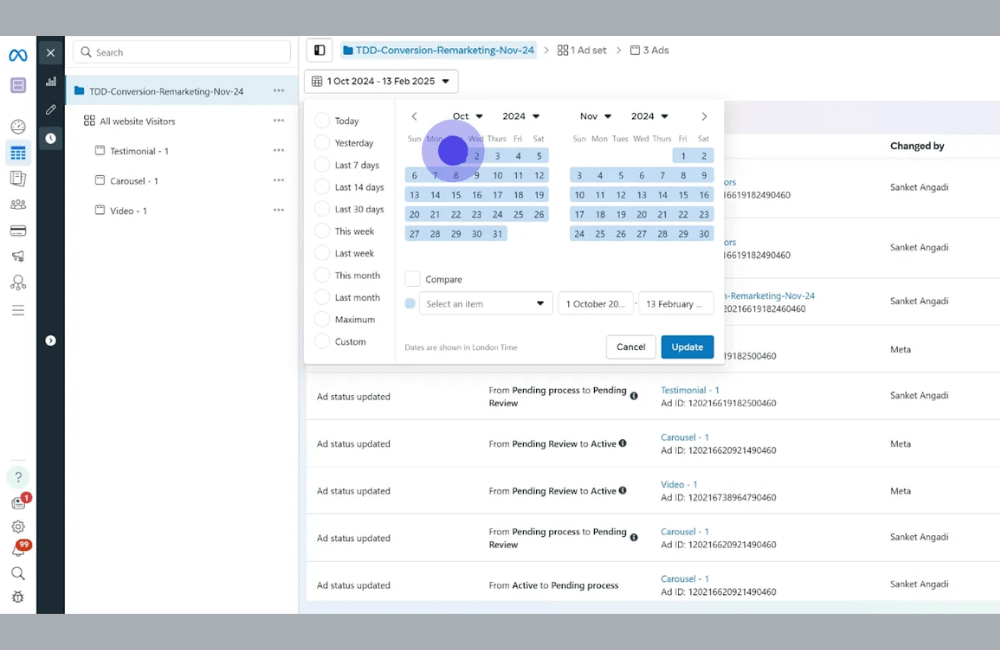
In addition to checking the current status, we evaluate activity history as an extremely important tool to determine the cause of advertising issues. To view the activity history, follow these steps:
Step 1: Access Facebook Ads Manager
Step 2: Select the level you want to check: Campaign, Ad set, or Ad
Step 3: Select the specific object to view
Step 4: Click on the Activity history section on the right side of the screen. Here, you can use filters to track details:
Activity type: Helps you review changes related to budget, schedule, objective, audience, or all actions performed on the ad.
Changed by: You can identify exactly who edited the ad, including:
- You with personal changes
- Other administrators or advertisers in the account
- Automated rules if the ad is changed by automation
- Authorized business identity
- Meta system during the review process or violation handling
For example, in many cases where we support clients, ads are turned off due to automated cost cap rules rather than a system error.
You just need to scroll down to view the entire activity history log, thereby identifying the exact cause and providing an appropriate handling direction instead of making intuitive edits.
Guide to fixing Rejected Campaign Status
When a Facebook ad campaign falls into rejected status, it not only disrupts the marketing plan but also directly affects revenue. In this section, we will guide you and advertisers step-by-step through handling the issue practically, easily, and effectively, even for beginners.
Access the correct Facebook Ads Manager
First, open your browser and access Google, then type the keyword Facebook Ads Manager and click on the official link from Meta. Following the correct path is very important to avoid logging into fake pages. Once on the site, select the Go to Ads Manager button to go directly to the ad management area.
Log in and check the campaign dashboard
At the login screen, enter the Facebook email and password used for your ad account. If the account is already recognized by the browser, this process will be very fast.
After a successful login, you will be taken to the Ads Manager dashboard, which displays all campaigns, ad sets, and ads that are running or experiencing issues.
Identify exactly which ads are rejected
From the dashboard, we recommend accessing the Campaigns dashboard and then switching to the Ads level. This is where Facebook most clearly displays the status of each ad.
Rejected ads are usually marked with a red notification along with the reason for the policy violation. Examples include sensitive content, before-and-after images, over-promising, or using banned words on Facebook.
Try turning the ad off and on again
A very simple tip that many advertisers successfully apply is to turn off the ad, wait for a few seconds, and then turn it back on. This is like restarting the system and sometimes helps Facebook update the ad status, especially in cases of technical errors or status display glitches.
Edit content to comply with policies
If the ad is still rejected, the next step is to edit the ad content. You should review:
- The ad copy uses exaggerated commitment language
- Images violate policies regarding health, finance, or personalization;
- The landing page has complete information and does not mislead users.
For example, if you are running cosmetic ads, avoid phrases like “effective after 7 days” and replace them with neutral descriptions focusing on the user experience. Once the edits are complete, resubmit the ad for Facebook review.
Request a manual review from Facebook
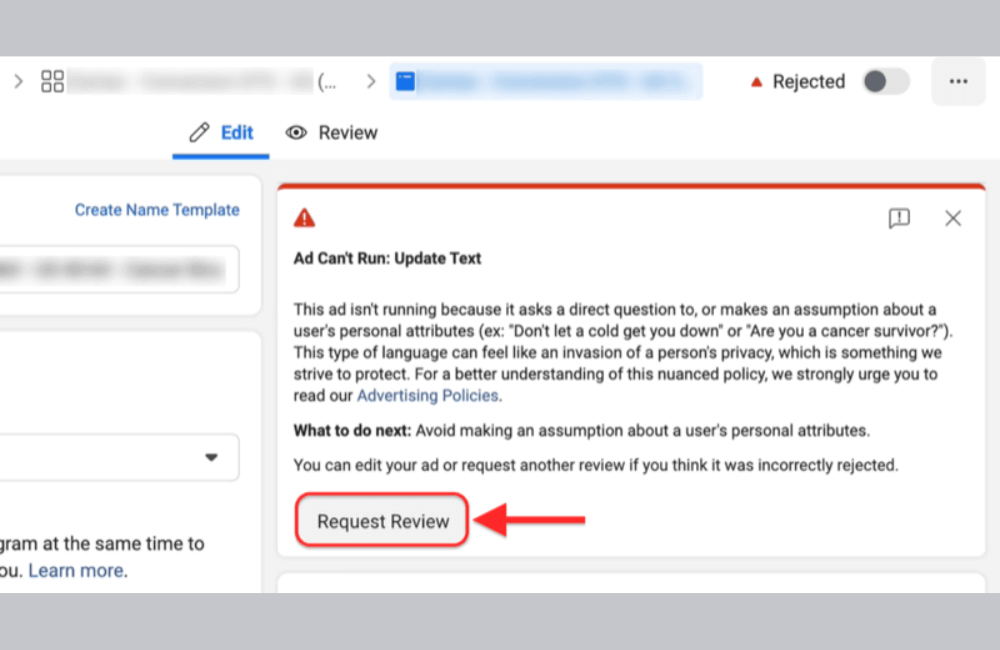
In case you believe the ad was rejected by mistake, Facebook allows a Request review directly within Ads Manager. When submitting the request, you can provide additional information to better explain the product, service, or advertising purpose. The Meta team will review it, and in many cases, the ad is reactivated after a few hours to a day.
Create new ads if a fast solution is needed
If you do not want to edit old ads or need to run them urgently to avoid missing a campaign, you can create a completely new ad. When starting over, apply the lessons learned to ensure the content complies with policies from the very first step. In practice, many advertisers choose this option to save time and reduce the risk of long-term ad suspension.
With the above process, we believe you can completely take the initiative in handling rejected Facebook campaigns, limiting disruptions, and keeping advertising activities stable and more effective.
Understanding and monitoring Facebook ad status in real-time helps us and advertisers proactively detect issues, handle them promptly, and limit campaign interruptions. When you correctly understand the meaning of each status in Ads Manager, you will optimize performance, save costs, and avoid unnecessary risks during the advertising process.
Frequently asked questions
Not necessarily. Typically, ads will be reviewed within a few minutes to a few hours, but during peak times or when content is sensitive, this period may last longer.
You should check the detailed status in Ads Manager and view notifications from Meta. If many accounts encounter similar errors within a short period, it is likely a system issue; conversely, a specific error with a reason is usually related to advertising policies.
💬 Contact now for free consultation from BHW!
- Website: https://vi.blackhatworld.io/
- Telegram: @bhw_agency
- Whatsapp: +84819001811
- Wechat: bhwagency
- Email: [email protected]
This article is also available in other languages: