How to Use the Facebook Lead Ads Testing Tool: A Step-by-Step Guide 2026
Currently, there are many automation tools for Facebook ads. But right on the platform, Facebook has asserted its position as the leading platform helping businesses reach potential customers through smart advertising tools. One of the most prominent features is the lead ads testing tool, a tool that allows advertisers to test, simulate, and optimize the process of collecting user information before running a live campaign. However, many people encounter common errors during use, leading to interruptions in testing or data synchronization.
In this article, we will provide a detailed guide on how to use the Facebook lead ads testing tool, and also share effective ways to troubleshoot common errors in 2026, helping you ensure your campaign runs smoothly and delivers maximum performance.
What is Facebook Lead Testing Tool?
Facebook Lead Testing Tool is a feature developed by Meta to help advertisers, businesses, and developers accurately check the process of collecting and transmitting leads data before running a real campaign.
Simply put, this tool acts as a “real-world simulation” that allows us to check whether the information collection forms (Lead Forms) are sending data correctly to email, CRM, or intermediate platforms such as Zapier, Make, or LeadSync.
For example, if you have set up lead generation ads on Facebook and notice that no data is being sent to your CRM system, this tool will help check where the error lies, which could be in the webhook configuration, access token, or a form with a connection error.
Suppose you are using LeadSync to send leads from Facebook to email, or using Zapier to automatically add data to Google Sheets, but the data is not showing up. The Facebook Facebook Lead Testing Tool is the solution to diagnose the problem. Thanks to this tool, we and advertisers can check the data collection process, identify integration errors, and ensure the system operates smoothly before deploying a real budget for the lead generation ad campaign.
How to Use the Facebook Lead Ads Testing Tool: A Step-by-Step Guide 2026
Facebook’s Test Lead Ads Tool helps advertisers like us simulate the form submission process, check whether data is accurately recorded, and ensure that the CRM system or integrated application is operating stably. Below is the detailed step-by-step guide you can follow right away.
Step 1: Access Facebook Lead Ads Testing Tool
First, navigate to the Facebook Lead Ads Testing Tool. The fastest way is to type this phrase on Google or access it directly via Facebook Ads Manager (Meta Ads Manager). This tool allows you to create test leads and check the data connection capability with the system you are using.
Step 2: Select the Facebook Page to test
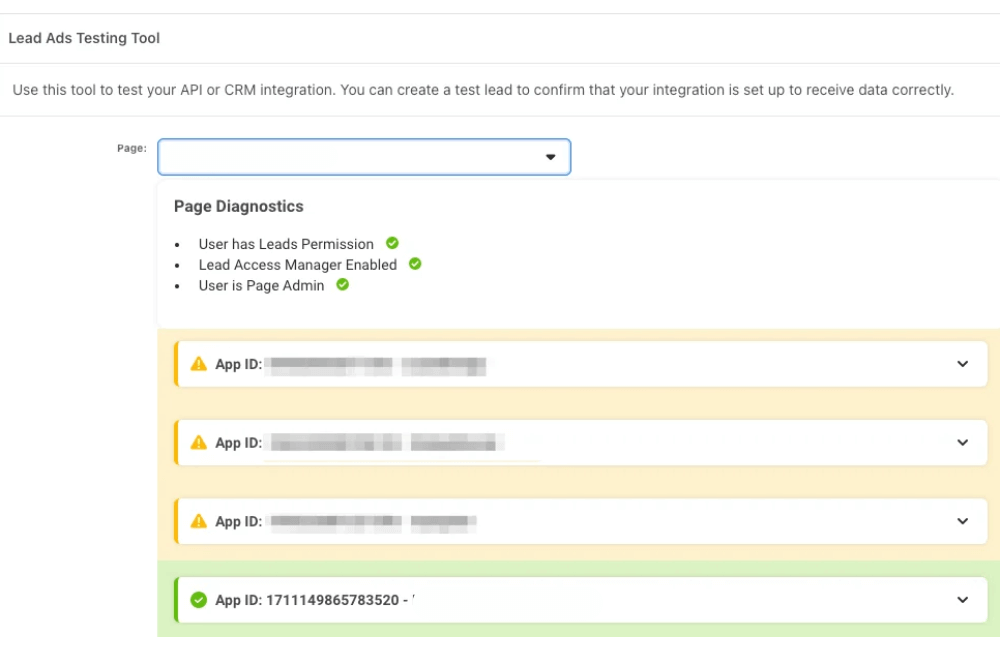
Next, select the Facebook page and the related Form from the drop-down list. The system will display your access permissions, including Lead Access Manager and Page Admin rights.
For example, if your business is using the LeadSync tool to collect leads, you need to ensure this application shows up with a checkmark confirming access. If an orange warning icon appears, click the right arrow to view error details and fix them promptly.
Step 3: Select the form you want to test
From the drop-down menu, select the correct Form that you have set up in your ad campaign and in the integration tool (such as Zapier or your CRM). Selecting the right form is crucial, as the test data will only be sent to the exact location you have configured.
Step 4: Preview Form
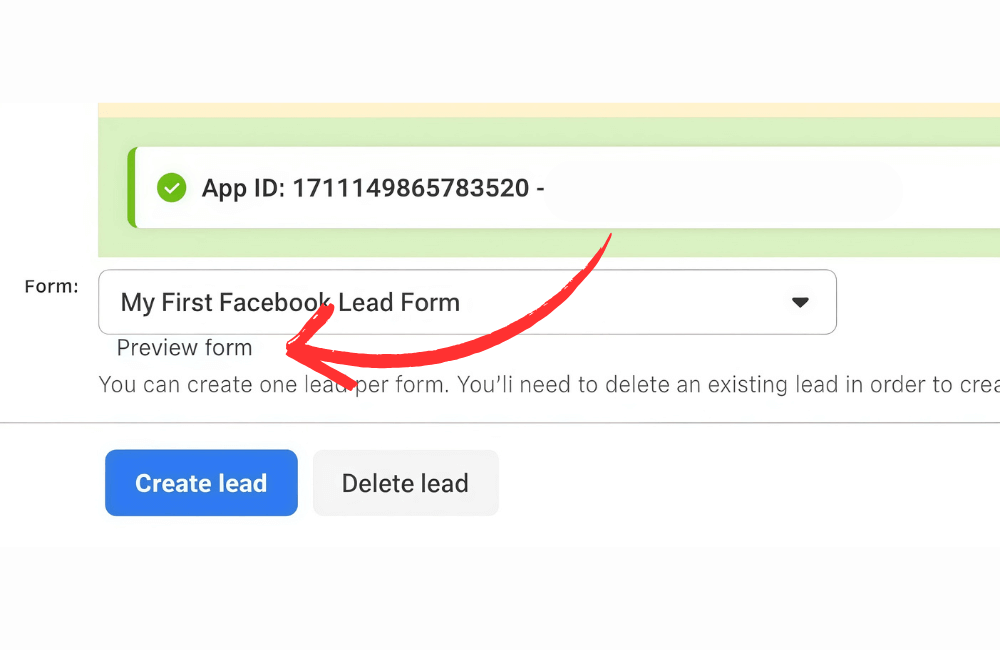
We recommend that you click the preview form to see a preview and try filling in real data, such as full name, email, or phone number. This method helps check that the form works smoothly while ensuring the information fields display exactly as you intend.
For example, if you are running an ad to attract leads for a law firm, enter simulated real data to see how the user experiences filling out the form.
Step 5: Create Test Lead
If you do not want to use your real information, simply click Create Lead to have Facebook automatically generate a test lead. Note that you can only create one lead at a time, so check each form individually to ensure the data is working correctly.
Step 6: Submit Complete Test Lead.
After creating a lead, Facebook will display the notification “Your test lead has been sent.” This is the signal that the form has sent data to the system you integrated.
Step 7: Track Status
Approximately 20 seconds later, click the Track Status button to check the results. If you are using LeadSync, you will see a success message along with the application ID, such as 1711149865783520 or 559339176323491.
In case the system displays an error, you should recheck the access permissions or the API connection between Facebook and the integrated application.
Step 8: Check data in Email, CRM, or integrated application
Finally, open your Email, CRM, or integrated apps like LeadSync or Zapier to check if the test data has been synchronized. If the test customer information appears correctly, it means your lead collection process is running smoothly and is ready for the live campaign.
Example: If you receive an email notification stating that “a new customer has signed up for the offer,” then you can be sure that the system is accurately recording leads and is not missing any information.
Reasons why the Facebook Lead Testing Tool is not working. Troubleshooting common errors
When using the Facebook Lead Testing Tool, advertisers sometimes encounter situations where the tool is unresponsive or unable to generate test data. Below are the common causes and detailed troubleshooting guides that we have compiled through supporting hundreds of ad accounts.
The Lead Form is not connected correctly
One of the most common reasons why the tool is not working is that the Lead Form you are using has not been set up correctly in the Leadsync account. For example, if you have created a new form on your Fanpage but have not updated it in Leadsync, the tool will not be able to identify and process the test data.
Troubleshooting: Log into your Leadsync account, check the “Lead Form” section, and ensure that the form you are using is correctly connected. After confirming, you can re-run the tool to test.
Incorrect notification email or mail filtered into the spam folder.
Sometimes the tool still works correctly, but you do not receive notifications about new leads. The cause often comes from an incorrect notification email address or the email being filtered into the spam folder. How to fix:
- Recheck the email address you entered in the setup section.
- Open the Spam/Junk mailbox to see if the notification mail was mistakenly filtered by the system.
- If so, mark it as “not spam” so that future notifications are delivered to the correct primary inbox.
Real-time integration error with webhook
If you are connecting the Facebook Lead Form with a webhook (used to push data to a CRM or automation tool), an integration error may cause the data not to display or to be delayed. How to fix:
- Open the Lead Testing Tool and create a new test lead.
- Check the processing status of the lead. If it shows “pending”, wait a few seconds and check again.
- When the process is complete, you will see the status change to “success” or “failed,” along with detailed information to identify the cause of the error.
For example, if the webhook returns a “403 Forbidden” error code, it is likely that you have not granted the correct access permissions to the data-receiving server.
Error when sending a test API request
For advertisers or developers who want to perform a technical check, you can create a test lead through a POST request to /{FORM_ID}/test_leads. However, if the tool does not respond, the cause may be due to not meeting the basic API requirements. Troubleshooting:
- Ensure that no test leads currently exist for the form you are testing.
- Confirm that your account has an Advertiser role or higher on the fanpage containing the form.
- After sending the request in the correct format, check the API response to ensure the server has received valid data.
Recheck access permissions and synchronized data.
In many cases, the Facebook lead testing tool does not work simply because the user does not have access permissions to the corresponding page or form.
How to fix: Go to Business Settings → Integrations → Leads Access to confirm that you have access to the form and Facebook page being tested.
Pro tip: After each fix, try submitting a new test lead to verify that the system is stable before launching the actual campaign.
The Facebook lead ad testing tool is a powerful assistant that helps advertisers ensure that forms, integrations, and data collection systems are working correctly before the real campaign starts. Thorough checking not only helps prevent data loss but also optimizes ad efficiency, enhances user experience, and increases the conversion rate. Always perform periodic testing to ensure the system operates stably and most effectively.
Frequently asked questions
No, you need an ad account and access to the fanpage containing the lead form to use this tool.
The reason could be that the email was entered incorrectly or filtered into the spam folder. Please recheck the email address, and also add the Facebook lead ads address to your list of trusted senders to avoid data loss.
💬 Contact now for free consultation from BHW!
- Website: https://vi.blackhatworld.io/
- Telegram: @bhw_agency
- Whatsapp: +84819001811
- Wechat: bhwagency
- Email: [email protected]
This article is also available in other languages: