How to Add Funds to Facebook Ads: Step-by-Step Guide for Prepaid Accounts (2025)

Running effective Facebook ads is not just about creating engaging content or targeting the right audience; it also depends on managing the ad budget smartly. Ensuring the ad account always has a sufficient balance is a key factor in keeping your Facebook business page growth campaigns uninterrupted and maintaining stable performance.
In this article, BlackHatWorld will join you in exploring how to fund your Facebook prepaid ad account, while also guiding you through troubleshooting common payment issues in Nigeria, helping your campaigns run smoothly, and maximizing your return on investment (ROI).
Prepaid account vs Postpaid account on Facebook
Before you start running ads, you need to clearly understand the difference between the two main types of Facebook ad payment accounts. Choosing the correct method not only helps your campaign run smoothly but also directly affects how you control your budget and avoid unintended risks.
Prepaid account
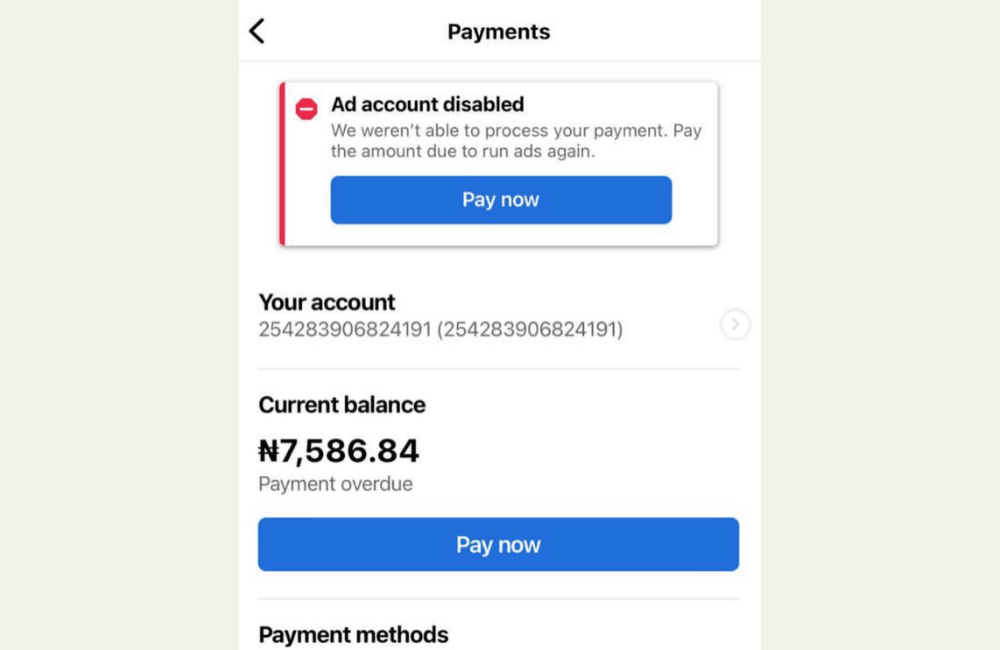
The prepaid account, also known as the Manual account, requires us to deposit money before running ads. Simply put, you deposit a certain amount of money into the ad account, and as the campaign starts running, Facebook will gradually deduct the costs from that amount until it is depleted.
For example, we often guide clients to use platforms like PayU or local e-wallets to prepay. If you deposit $50 USD, Facebook will automatically deduct this amount each time the ad is shown or receives an interaction. When the balance reaches $0, the campaign will automatically pause until you top up again. The advantage of this format is that you tightly control spending, which is particularly suitable for beginners or those who want to limit their daily budget.
Postpaid Account
In contrast, a postpaid account allows you to run ads first and pay later. Facebook will automatically calculate the ad cost over a certain period (usually 7–30 days) and then automatically deduct the money from your payment card, such as a Visa, MasterCard, or international debit card.
For example, if you let the ad run for 10 days with a total cost of 200 USD, on the payment date, Facebook will automatically withdraw that amount from your card without requiring manual action from you.
This method offers high flexibility for businesses with a stable budget or those running continuous campaigns. However, we have noticed that some users often face situations where Facebook still deducts money even after turning off the ads, due to not canceling the campaign or not disconnecting the payment method correctly.
Facebook ad payment methods
Facebook offers various payment options, making it easy for you to choose a suitable method based on your needs and operating market:
- Visa, MasterCard, or American Express: This is the most common method, easy to set up, and prioritized by Facebook for fast processing.
- PayPal: For those who want an additional layer of security and more flexible transaction management capabilities.
- Bank transfers: Suitable for businesses or ad agencies with high budgets and a need for bulk fund loading.
- Facebook ads, coupons, or promotional codes: Sometimes offered by Facebook or partners as part of promotional programs very useful for testing small campaigns without significant investment.
Each method has its own advantages. For example, credit cards give you flexibility when scaling campaigns, PayPal ensures absolute security for financial information, and bank transfers are a reliable choice for large campaigns that require stable cash flow.
How to Create a Prepaid Ad Account on Facebook
To help advertisers manage spending more effectively, Facebook allows us to create prepaid ad accounts, meaning you deposit money first before running ads, which helps control the budget easily and avoids unexpected costs. Below is a detailed step-by-step guide compiled from our practical experience deploying for hundreds of accounts.
Access Meta Business Help Center
First, go to the Meta Business Help Center to view official guidelines from Facebook. Here, the platform clearly states: “You can create an ad account with a manual payment method such as Paytm…”
Although Facebook does not directly mention PayU, in practice, this method is still accepted in many countries, including Nigeria, India, and some other African markets.
Important Note: If your current account is set to postpaid mode, you cannot convert it to prepaid; you must create a new account from scratch.
Creating a New Ad Account in Business Manager
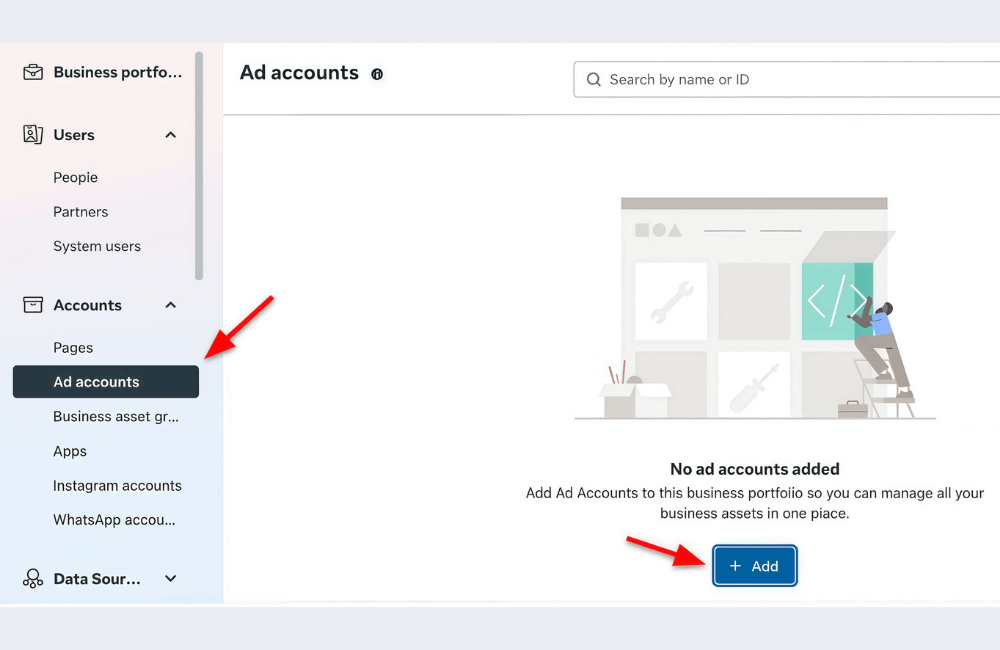
First, access Business Manager via the link: business.facebook.com. Then:
- Click the three-line icon in the left corner → select Business Settings.
- In the left sidebar, select Ad Accounts → click Add → choose Create a New Ad Account.
- Name the ad account (e.g., “Nigeria Prepaid Ad Account”) and select the currency that matches your country, such as NGN (Naira).
This is an extremely important step. If you choose the wrong currency or skip this step, the account may default to postpaid, and you will not be able to adjust it.
Next, select the appropriate time zone, for example, Africa/Lagos, then click Next → select the business → Create to complete the account creation step.
Grant access and complete the initial setup
After the account is created, the system will ask you who has the authority to manage the account. Select yourself or the person in charge of advertising → click Assign.
Small Tip: When Facebook suggests “Add Payment Info,” do not rush to click on it. Instead, close that window because adding payment at this stage sometimes causes Facebook to default the account to a postpaid payment method.
Select Prepaid Ad Payment Account
Now it is time to verify whether the account you just created is actually prepaid.
- In Business Manager, open the menu → select Billing.
- Click Payment Settings → select Add Payment Method.
- Fill in the necessary information:
- Country: select your country (e.g., Nigeria).
- Currency: re-enter the corresponding currency unit (e.g., NGN).
- Region: enter Lagos or your city.
- Click next to continue.
If you see the option “Naira payment with Mastercard” or “Manual Payment” appear, then congratulations! Your ad account has been successfully set up in prepaid mode.
How to Add Funds to Facebook Ads: Step-by-Step Guide for Prepaid Accounts (2025)
If you are running a Facebook ad campaign, ensuring that the ad account always has sufficient funds is a crucial factor to prevent the campaign from being interrupted midway. Below is a detailed step-by-step guide for new advertisers to pay for Meta ads easily, securely, and quickly.
Step 1: Access Facebook Ads Manager
Open Facebook ads manager or search Google for the keyword “Facebook Ads Manager,” then click on the first result. When you land on Meta’s official page, you will see the “Go to Ads Manager” button. Click this button to start.
Step 2: Log in to your Facebook account
After clicking “Go to Ads Manager,” the system will require you to log in using your personal Facebook account or a business account. Enter your email and password, then click “Login.”
Upon successful login, you will be taken to the ads dashboard, which displays your active campaigns, budget, results, and spending history. This is the “financial center” for all Facebook advertising activities.
Step 3: Open Payments and Billing
From the main Ads Manager interface, navigate to the “Billing and Payments” section. Here, you can view the entire payment history, invoices, ad costs, and budget status. If you want to check why your ads paused due to “insufficient funds,” this is the first place you need to look.
Step 4: Go to Payment Settings
Within the Billing section, you will find the “Payment Settings” option. This is the area where you manage payment methods, add new cards, or adjust top-up methods.
Professional advertisers often use various methods to ensure campaigns are not interrupted. For example, using both a primary Visa card and a backup PayPal account.
Step 5: Add new payment method
Once you are in the Payment Settings section, click the “Add Payment Method” button. Facebook will display different options depending on your country. For example:
- In Vietnam, you can select a credit/debit card (Visa, MasterCard) or MoMo, ZaloPay (if supported).
- In Nigeria, you might be able to add PayPal or a local bank transfer payment method.
Select the method that suits you and click “Next” to proceed.
Step 6: Enter payment information
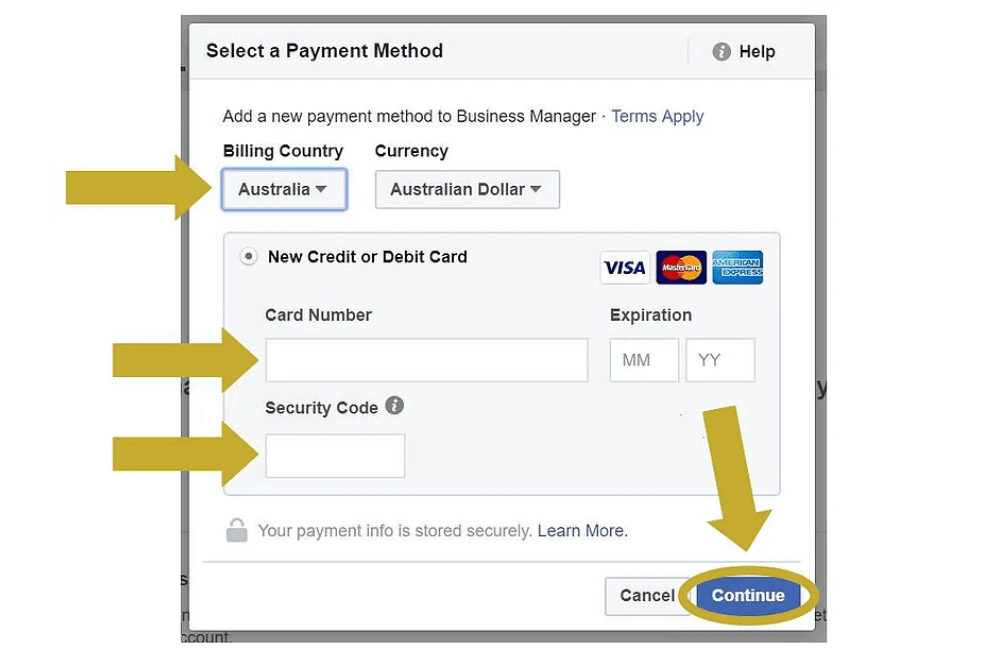
At this step, you will be asked to fill in your payment details. For example, if you choose a credit card, enter the following:
- Card number
- Expiration date
- CVV (3 digits on the back of the card)
Please double-check to avoid errors, as incorrect information may cause the transaction to be rejected. After that, click “Next” to save the information.
Step 7: Top up money into your ads account
Once you have successfully added a payment method, you can select “Add Funds” in the payment Settings section. Enter the amount you wish to deposit. Next, select the payment method you just added, then press “Next” to proceed with the transaction.
If the system requires additional personal information (such as a billing address or postal code), please fill it in completely and accurately. In some cases, you may need to verify an OTP or a security code sent to your phone or email to complete the funding process.
Step 8: Confirm and complete the transaction
Before finalizing, double-check all the information. If everything is correct, click “Save” to confirm the transaction. Upon successful payment, the new balance will immediately appear in the ad account. From here, you can return to Ads Manager and start or resume your campaign.
Understanding how to add funds to Facebook ads not only helps you ensure continuous campaign operation but also helps optimize costs and avoid interruptions during the ad-running process. We hope that with the detailed guide above, advertisers can confidently manage their budgets more effectively. If you encounter any issues during the top-up process or need specialized support, do not hesitate to contact the BlackHatWorld Agency team for timely consultation!
Frequently asked questions
Yes. Facebook allows advertisers to add funds using various currencies depending on the region. However, choose a fixed currency from the start to avoid incurring exchange rate differences or payment errors later.
In case of a failed transaction, you should recheck your card information, account balance, or try using a different payment method. If it still fails, contact Facebook support or the BlackHatWorld Agency technical team for the fastest assistance.
💬 Contact now for free consultation from BHW!
- Website: https://vi.blackhatworld.io/
- Telegram: @bhw_agency
- Whatsapp: +84819001811
- Wechat: bhwagency
- Email: [email protected]
This article is also available in other languages: