How to Add an Admin to a Facebook Page (Step-by-Step Guide for 2025)
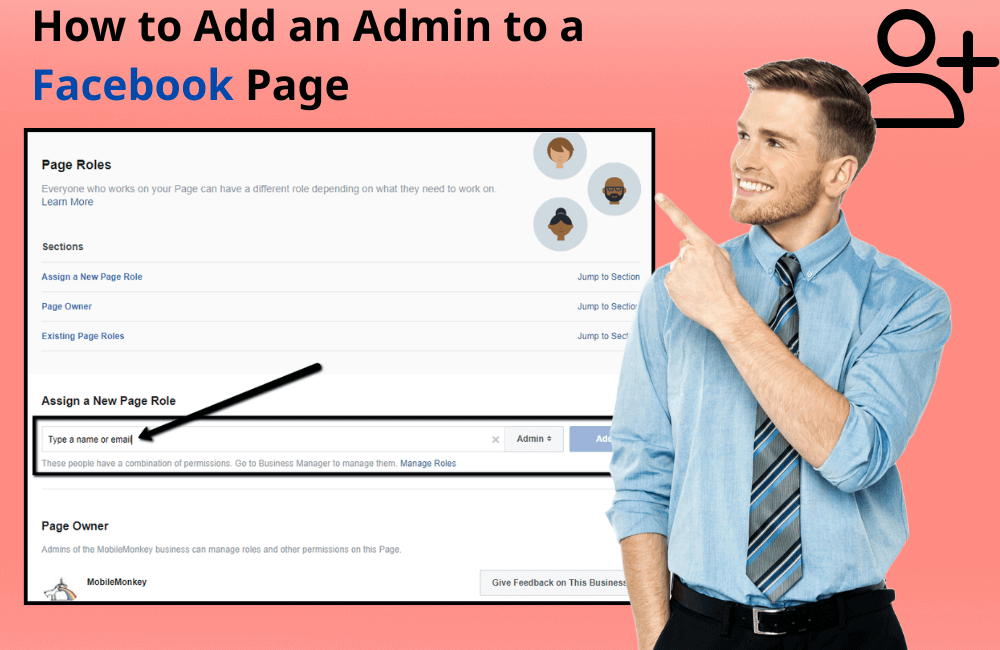
If one day your Facebook account is temporarily locked or you cannot log in to your personal profile, it means you will also lose access to your business Facebook Page. For many people, this can be a real nightmare because in just a few seconds, online business activities can be completely interrupted.
That is why we always advise business owners to add a backup email to their personal account and, more importantly, to set at least one backup administrator for their Facebook Page. This will help you keep control and avoid losing the Fanpage in case the main account is locked or suspended.
In this article, BlackHatWorld will provide a detailed guide on how to add an administrator to your Fanpage to help you ensure security and maintain your business operations continuously, even when an incident happens to your personal account.
As an official partner of Facebook, BlackHatWorld owns a large inventory of high-quality advertising accounts that meet various business needs. We have a team of experienced Facebook Ads experts with deep knowledge of the algorithm and delivery mechanism. They have successfully implemented hundreds of projects in many fields such as e-commerce, tourism, education, fashion, and financial services.
Customers when working with BlackHatWorld can easily choose the type of account that matches their business field, time zone, currency and target country.
Before handover, all advertising accounts are carefully nurtured and verified by experts to ensure stable performance, high reliability and full policy compliance.
Specific Permissions of a Fanpage Admin
When it comes to managing a business Facebook Page, the Administrator (Admin) role is the highest level of access and has the greatest influence on all activities on the page. With this role, media advertisers can fully operate the page, from controlling content and managing advertising to adding or removing other members.
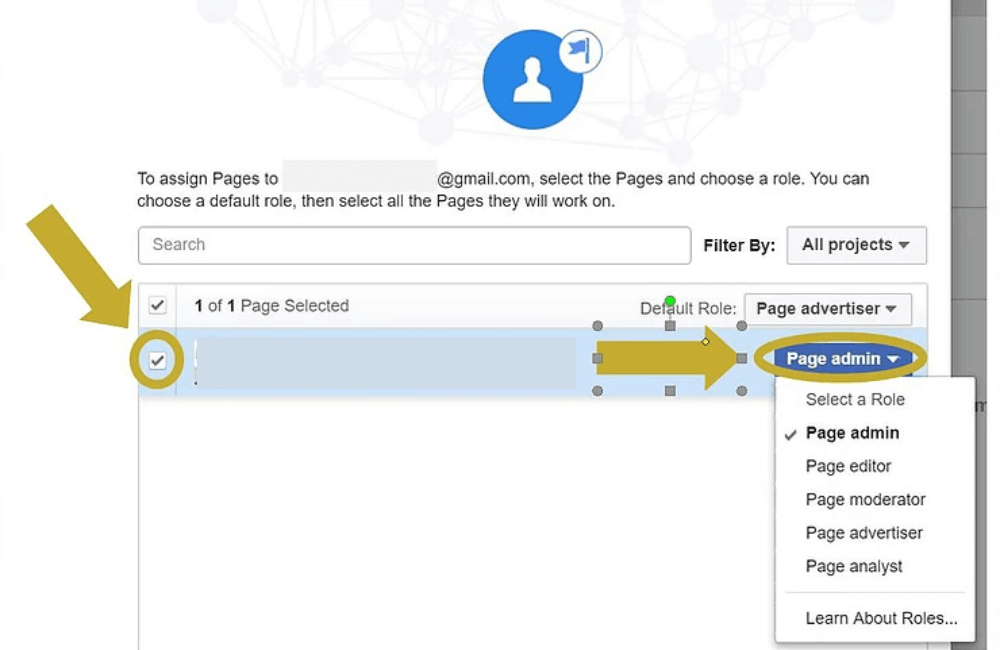
In practice, besides the role of Administrator (Admin), Facebook also divides management permissions into several levels such as Editor, Moderator, Advertiser, and Analyst. Each role has different levels of access to ensure flexibility and security for the Fanpage, especially when a team of multiple members is involved in management. Below are the specific permissions that a Fanpage Admin can perform:
Content Management on the Page
Admins can post, edit, or delete any content on the Fanpage.
For example, if a post contains inaccurate information or needs an update, the Admin can make immediate changes without asking for approval from anyone else.
Content Management on the Page
With admin rights, you can reply to messages, respond to comments, or remove negative comments that may affect the brand image.
This helps the Fanpage maintain its credibility and ensure high-quality engagement with customers.
Ad Management
The admin has the right to create, edit, and delete advertising campaigns on the Fanpage. For example, if you are advertising a new product, you can directly access Meta Ads Manager to adjust the budget, change the target audience, or stop the ad at any time.
Member Setup and Management
The admin can add or remove other people from the management team, as well as change their roles. For instance, if you hire a new marketing employee, the admin can grant them the “Advertiser” role so they can create and monitor campaigns without affecting the main settings.
View Reports and Activity Analysis
The Admin has full access to all statistics and detailed reports on engagement, reach, ad performance, and user behavior on the page. This data is essential for optimizing your content and advertising strategies.
Permanently Delete Fanpage
The highest level of Admin authority is to permanently delete the Fanpage. This is an extremely important and irreversible action, so it should be considered carefully before execution.
For example, if the business transitions to a new brand and no longer uses the old page, the Admin may delete it to avoid brand confusion or outdated information.
How to Add an Admin to a Facebook Page (Step-by-Step Guide for 2025)
Adding members to a Facebook Page is an important step that helps businesses, marketing teams, or advertisers work more efficiently and securely. Because if one day your account is locked, access is lost, or you are simply too busy to handle everything, someone else can still take over and maintain business operations on the Page.
Important Note Before Assigning Page Roles
One important principle we always emphasize: Only grant Admin access to someone you truly trust.
An Admin can remove you from the Page or change all access permissions, so proceed with caution.
If you work in a team, assign roles appropriately, for example:
- Editor for content creators;
- Moderator for those managing comments and messages;
- Advertiser for ad campaign managers.
In addition, we recommend that you check the access list regularly to ensure there are no unknown accounts or former users who still have Page management rights.
By setting clear permissions and maintaining strict control, you will manage the Page more effectively, more securely, and ensure business continuity.
Step 1: Log in to the account that owns the Page.
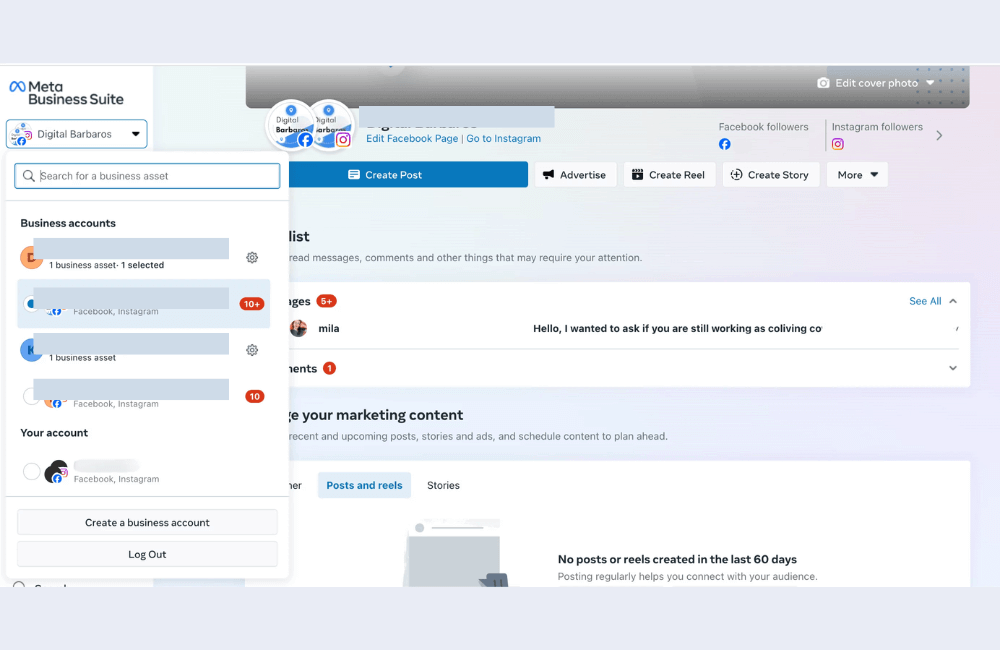
First, you need to log in to the Facebook account that owns the Page.
Open your browser, go to facebook.com, and log in as usual with your email or phone number and password.
After logging in, look at the left sidebar of the main interface. There, you will see a small flag icon (Pages). Click on it to access “Pages that you manage.”
Please note that only the Page owner or Admin has the right to add or change someone else’s role.
Step 2: Access Meta Business Suite
Next, go to Meta Business Suite, which is the comprehensive management center that helps advertisers and businesses manage their Facebook Pages more effectively.
On the left interface, you will see Meta Business Suite at the top. Click to open it.
Here, you can:
- Create posts, Stories, Reels, or ads;
- Schedule marketing content (Marketing content calendar);
- Manage advertising campaigns (Ads Manager);
- Track growth metrics (Insights) and customer feedback.
Step 3: Create Business Portfolio
If this is the first time you add an administrator, create a Business Portfolio to manage business assets professionally.
Click “Create Business Portfolio” and fill in the information:
- Portfolio name
- Full name
- Business email
When finished, click Create.
After the system confirms, you can add a Facebook Page or Instagram account to the same portfolio for easier management.
Step 4: Add People to the Business Portfolio
After creating the Portfolio, your name and email will appear with Full Control.
To invite others, click “Add another person by email” and enter their email address. Here, you can choose the access level:
- Full Control – administrator permission.
- Employee Access – limited access, suitable for marketing staff or support team members.
Once the email is entered, Facebook will send an invitation to that person. After they accept, they will officially have permission to manage the Page.
Step 5: Page Management and Permission Settings
Go back to Meta Business Suite, select Settings → Pages.
Here, you can:
- Add an existing Page or create a new one;
- Assign roles to each person;
- Connect other assets such as Ad Accounts, Pixel, or Catalog.
If you grant Full Access, the person will become an Admin.
If you grant Partial Access, they will be assigned as an Editor or Moderator.
Step 6: Assign Specific Permissions to Each Person
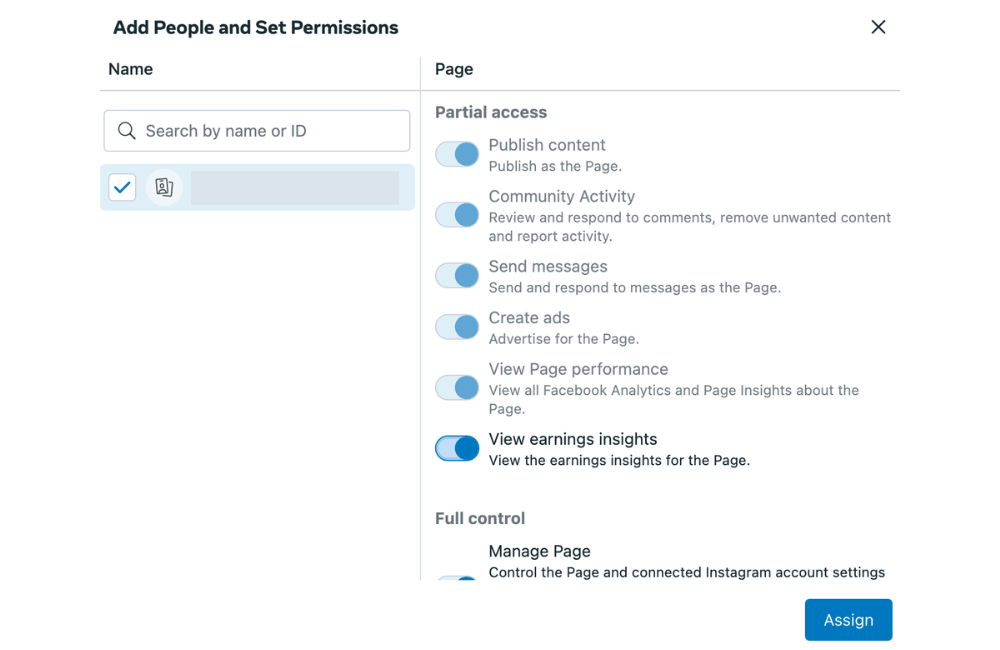
Facebook allows you to customize detailed access permissions, including:
- Access to Content: post, manage, delete content, and protect copyrights.
- Community Activity: respond to comments, handle violations, and report activities.
- Insights: view campaign metrics and performance.
- Messages: reply to customer messages.
- have complete management of all business and advertising tools.
After selecting Full Control, click Assign People.
The added person will receive a confirmation email, and once they agree, their name will appear in the Page management list. If multiple people are involved, you can easily view the full permission list and adjust it at any time.
Adding administrators to your Facebook Page is an essential step to help your business operate smoothly and minimize risks if personal accounts encounter issues.
With the detailed guide above, you can easily assign permissions, manage, and protect your Page more effectively in 2025.
Frequently asked questions
Facebook does not limit the number of administrators, but you should only grant access to people you truly trust to avoid security risks.
No. You need to log in to an account that currently has administrator access to add or edit someone’s permissions on the Page.
💬 Contact now for free consultation from BHW!
- Website: https://vi.blackhatworld.io/
- Telegram: @bhw_agency
- Whatsapp: +84819001811
- Wechat: bhwagency
- Email: [email protected]
This article is also available in other languages: