From Concept to Conversion: Mastering Facebook Video Ad Production in 2025
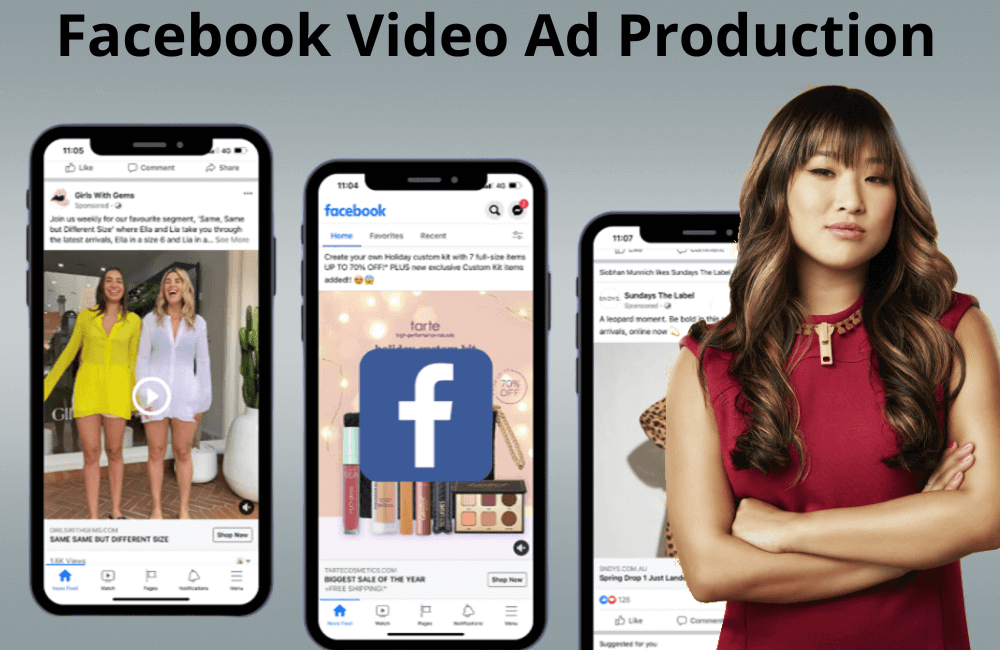
Video ads have become an essential element in every advertising strategy today, whether you are running a small, medium, or large enterprise. However, for many small businesses, creating an engaging ad video is a significant challenge, from ideation and filming to optimizing production costs, all of which require time and skill. There is a multitude of advice and theories on the Internet about how to create Facebook ad videos that attract customers, but not everyone knows how to turn them into practical action. Therefore, in today’s article, BlackHatWorld will walk you through a detailed, step-by-step guide on producing engaging and high-converting Facebook ad videos, even if you have a limited budget.
From Concept to Conversion: Mastering Facebook Video Ad Production in 2025
In 2025, producing Facebook ad videos is not just about creating beautiful visuals, but more importantly, about how we convey the message to the right audience and meet the correct conversion goal. Every successful video starts with a clear script. Audio is also an essential element for your video to attract young people, which is why if you edit and post videos and Facebook posts, you can also add music to the post right on the platform.
We recommend starting by defining the campaign objective. For example, if you want to find seller leads, the video content must answer questions that people who want to sell their houses are typically concerned about, such as “How much does it cost to sell a house?” or “How can I increase my home’s value before selling?”.
After identifying the objective, we use a tool called video recipes, which is a library containing over 200 readily available ad video templates, including:
- Sample videos for reference on tone, rhythm, and structure.
- Ready-made scripts customizable by industry.
- Detailed filming and posting guides
For instance, if you choose the topic “What is the cost of selling a house?”, this is an educational and helpful video format that assists you in demonstrating expertise as a credible real estate professional.
Preparing the Script and AI Background for Facebook Ad Videos
Once you have the script, we recommend transferring the content to email for easier editing on a computer, then sending it to your phone to shoot the video. A small tip: start a new line after every 1–2 sentences so that when displayed on a teleprompter, you can read more easily and speak more naturally.
Next, we use AI to create a background, which makes the video look more professional regardless of where you film it. For example, you can film in your living room and then use AI to insert a background of a luxury home, appropriate for the real estate content.
You can ask the AI to generate a background, such as: “Background for a real estate video, topic ‘how much does it cost to sell a house,’ red and blue colors, with a large house image in the background.”
After creating a satisfactory background, save the image and send it along with the script to your phone to start filming the ad video.
Filming Videos with CapCut and Tips to make Videos more Professional
When filming videos, we often use CapCut, a powerful and easy-to-use editing application. In CapCut, you can:
- Select the Camera mode to film directly.
- Add a Green Screen effect to insert an AI background.
- Use the Multi-Clips mode to film short segments.
An extremely useful tip is to film segments of 2–3 sentences; if you make a mistake, you only need to re-film that segment, not the entire video. This method helps save time and maintain natural energy.
In the teleprompter section, you only need to paste the script, adjust the scrolling speed accordingly, and add a 3-second countdown before starting the shoot.
Editing and Optimizing Video for Facebook Ads
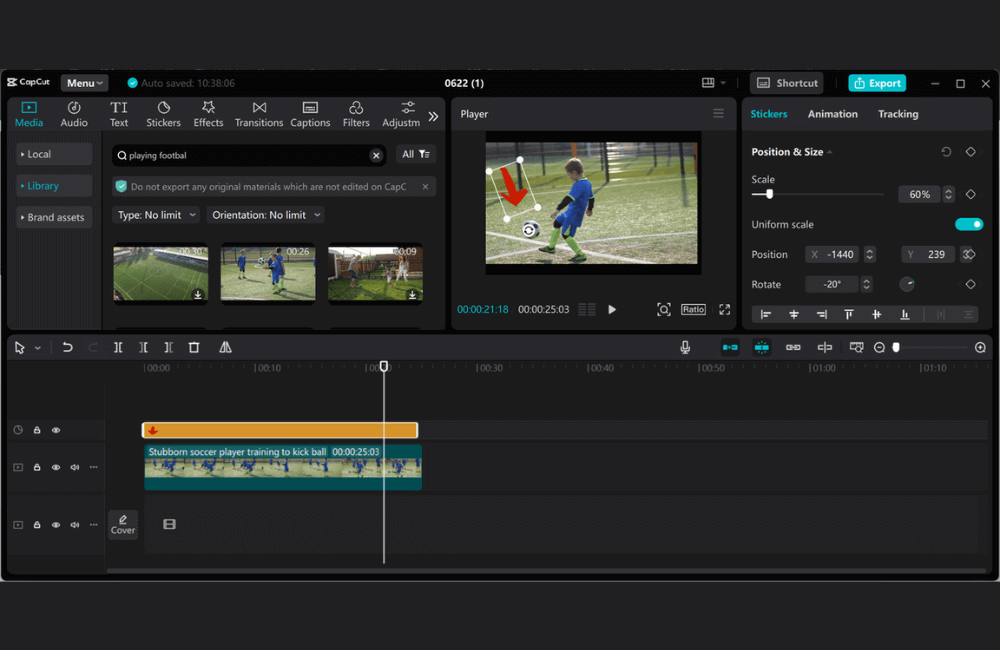
After filming, you can cut the excess footage by selecting the position, clicking “Split,” and deleting the unnecessary beginning or end. A small tip to make the video look more natural is to start right when you smile or begin speaking; this creates a friendly and professional impression.
Additionally, add a Headline Text to attract viewers as they scroll past the video. For example, the text “What is the cost to sell a house?” appearing at the beginning of the video will immediately grab attention.
Don’t forget to add Auto Captions because they help increase viewing time and engagement, especially when users watch the video on mute.
How to Edit Videos Easily Using the Canva Tool
In the 2025 era, creating Dynamic Video Ads is no longer a job solely for professional designers. With Canva, anyone can design visually appealing, professional, and completely free video ads themselves.
First, you just need to open your browser and go to canva.com. If you do not have an account, select “Sign up for free” to register quickly. If you already have an account, let us log in and start working immediately on the main Canva interface.
Select the Appropriate Video Size and Design Template
When starting a new project, you can select “Custom Size” in the top right corner to input your desired video dimensions. For example, if you are creating a square video for Facebook ads, you can enter 500 x 500 pixels. We typically recommend that you set the exact video size according to Facebook’s requirements.
However, to save time, we recommend using Canva’s search bar and typing “video ads.” Canva will display hundreds of available video ad templates for various platforms, such as:
- YouTube video ads: Horizontal video templates suitable for YouTube ad campaigns.
- Facebook, Instagram, TikTok ads: Vertical (portrait) video templates that display well on mobile devices.
- Pinterest or LinkedIn ads: Video templates suitable for professional ad formats.
For example, we will select a gym ad video template. After clicking on it, Canva will ask if you want to replace all pages or just one, since each page corresponds to a scene in the video. Our template has 4 scenes, so we will select “Apply all 4 pages” to add all of them.
Customize video content for your brand
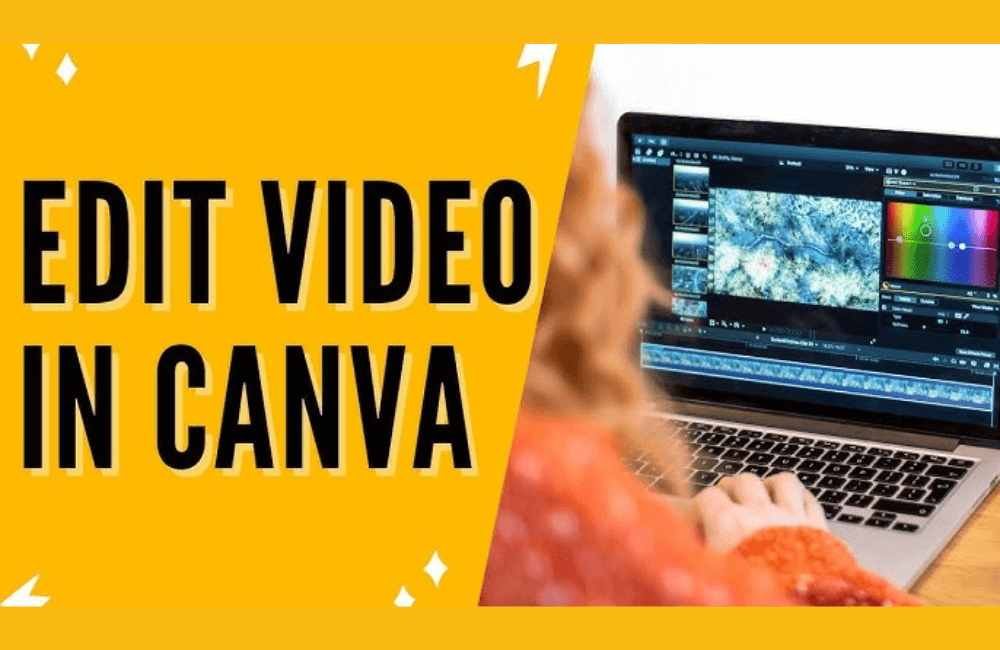
After selecting a template, you will see 4 scenes displayed on the bottom bar. Each scene can be edited individually; this is the time for you to turn a general template into a video with your unique brand style.
In the first scene, we see a headline, a logo, and a subtitle. These parts are often grouped, so click Ungroup to customize each detail.
- Change the Headline: For example, we change “Gym Power” to “Level Up Fitness.” Then, adjust the font, color, and position to match the brand identity.
- Add or Replace the Logo: Go to Elements → Search “gym” to find available icons, or if you have your own logo, go to Uploads → Upload files to upload it. Canva also supports creating free logos right on the platform if you do not have one.
Behind it is the background video — you can extend, shorten, or replace it with another video. Go to Videos → Search “gym,” select a suitable video (prioritize videos without a watermark). For example, we choose a dark-toned video, drag and drop it to replace the old background, and adjust the duration to 3–6 seconds for a more natural video.
Adding professional motion graphics and animation
To make the video more lively, you can add motion effects (animation) to each element:
- Select the title “Level Up Fitness” → Animate → Block to create a powerful text reveal effect.
- Select the logo → Animate → Rise to make the logo appear smoothly from the bottom.
Adding animation helps the video look more professional without the need for complex software. You can apply this effect to each scene to create continuity throughout the video.
In the final scene, do not forget to add a call-to-action (CTA) such as: “Message us now to receive 1 week of free training!”
We often bold or change the color of the phrase “1 week free trial” to emphasize the offer. You can also add a Block animation effect to increase attraction.
Advanced editing methods for advertisers
Canva offers many powerful options that many advertisers often overlook:
- Uploads: Upload your brand’s own videos, images, or audio.
- Styles: Quickly change the entire font and color palette to synchronize brand identity.
- Background: Choose a color or background image that suits the campaign message.
- Grid view: View the entire video in a grid format, making it easy to control the layout of each scene.
For example, if you are running a campaign for a spa or fitness center, you can use a light pastel tone, combined with relaxing background music to enhance the emotional effect on viewers.
Preview, Download, and Share the Final Video
After completing the edits, click Preview to watch the entire video and ensure all effects, text, and colors are smooth. If satisfied, you just need to:
- Click Download → File type → MP4 Video.
- Select All pages → Download.
Canva will automatically export the finished ad video and download it to your device. Additionally, you can share directly via a link by clicking Copy link in the share section.
Once downloaded, the video can be used on all Facebook advertising platforms, helping you save design time while still ensuring professionalism for your campaign.
In an era where video dominates social media platforms, mastering the Facebook video ad production process not only helps our business create engaging content but also converts viewers into actual customers. Let’s start with the basics so that you can build video ads that are captivating and yield deserving results for your efforts.
Frequently asked questions
Facebook supports many video formats, but the vertical format (4:5 or 9:16) often yields the highest effectiveness, especially on mobile devices. However, you should also experiment with the square format (1:1) for ads that appear in the News Feed to ensure flexibility.
To optimize conversions, deliver the main message in the first 5 seconds, add a clear CTA (such as “sign up now” or “learn more”), and use subtitles so viewers understand the content even without sound. Additionally, you should run A/B tests to determine which video style is most suitable for the target customer group.
💬 Contact now for free consultation from BHW!
- Website: https://vi.blackhatworld.io/
- Telegram: @bhw_agency
- Whatsapp: +84819001811
- Wechat: bhwagency
- Email: [email protected]
This article is also available in other languages: